

Processing Unstructured Documents
Ingest PDFs, documents, spreadsheets, and slide decks in the Adaptive Data app without building a preprocessing pipeline.
Most organizational knowledge is stored in formats designed for people rather than tabular processing: PDFs, OCR’d documents, spreadsheets, word-processing files, slide decks, and email threads. Layouts, embedded tables, merged cells, handwriting, and footnotes make custom preprocessing slow and brittle.
The Adaptive Data app accepts these files in their raw form. It extracts and structures the content, then produces a dataset that can use the same column mapping, adaptation, evaluation, and export flow as other datasets.
What counts as an unstructured document?
Section titled “What counts as an unstructured document?”The app treats document-style source material as unstructured data whether you upload it locally or import it from Hugging Face or Kaggle. Common examples include:
- PDFs, including scanned and OCR’d files.
- Spreadsheets with merged cells, multi-row headers, or different layouts across sheets.
- Word-processing documents with embedded tables and footnotes.
- Slide decks whose structure is expressed through layout rather than rows.
- Email threads and similar conversational exports.
Process documents in the app
Section titled “Process documents in the app”Sign in at adaptionlabs.ai/app, create a dataset, and upload or import the source files. When the app detects document-style data, it asks two questions that determine the resulting rows.
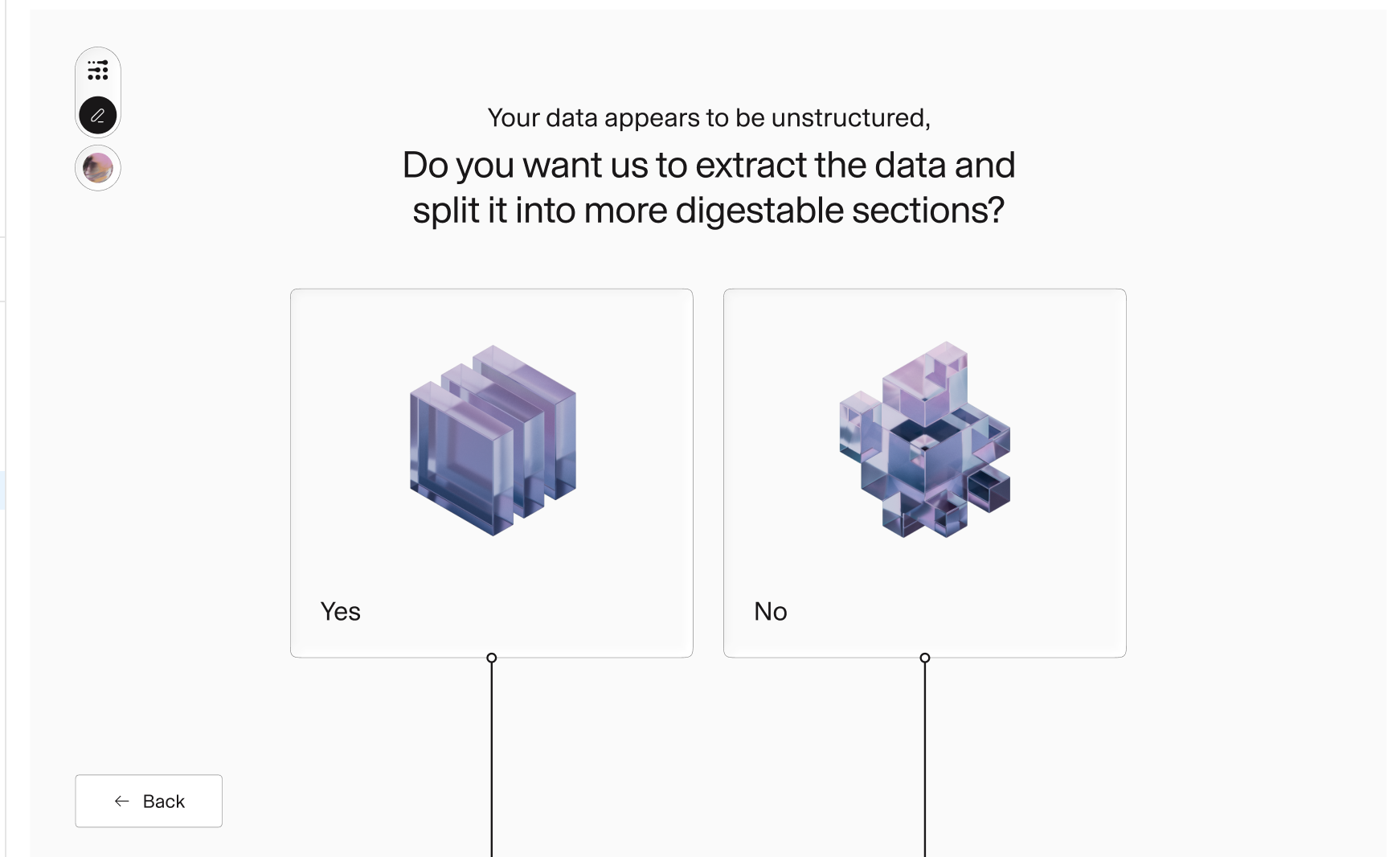
Step 1 | Enable extraction
Section titled “Step 1 | Enable extraction”Choose Yes to extract and split the documents. Choose No only when you want the files ingested without the unstructured-document processing flow.
Step 2 | Choose how to split
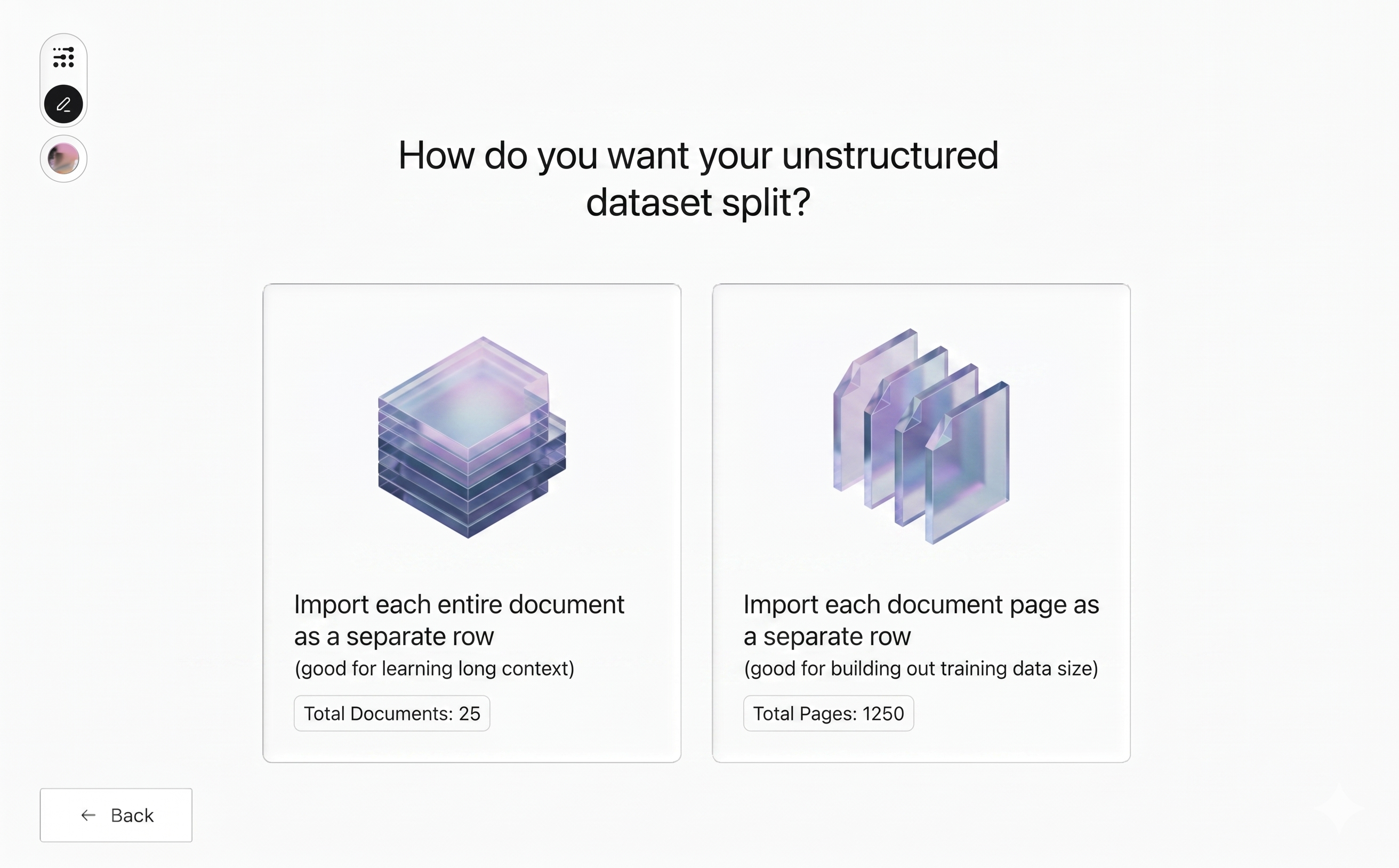
Section titled “Step 2 | Choose how to split”Select the unit that should become one dataset row:
- Per document keeps each complete file in one row. Use it for long-context tasks or whole-document extraction.
- Per page creates one row for each page. Use it to produce more training examples or work with page-level content.
The app previews the row count for both choices before you continue.
Map the extracted content
Section titled “Map the extracted content”The split choice often suggests a column-mapping pattern. These are starting points, not restrictions.
Per page | Use content as the completion
Section titled “Per page | Use content as the completion”Each row contains the extracted content of one page. Map that content as the Completion and let Adaptive Data generate a matching prompt.
For example, a page containing a product-return policy can become the completion while Adaptive Data generates a prompt such as:
Explain the conditions under which a customer can return this product.
This is the fastest route from raw pages to an instruction-style dataset.
Per document | Use content as context
Section titled “Per document | Use content as context”Each row contains a complete document. Map the extracted document as Context, select I don’t have prompt, and choose Write universal prompt.
Use a complete instruction that specifies the desired output. For example:
Extract the customer name, effective date, renewal date, and total contract value from this document. Return valid JSON with the keys
customer_name,effective_date,renewal_date, andcontract_value. Usenullwhen a value is not present.
The app applies the same prompt to every row while supplying that row’s document as context.
Continue with Adaptive Data
Section titled “Continue with Adaptive Data”After both questions are answered, extraction runs and produces a regular Adaptive Data dataset. Continue with:
- Column mapping with a universal prompt.
- Recipes and brand controls.
- Quality evaluation.
- Review and export of the adapted rows.
For the full UI flow, continue to the Adaptive Data app walkthrough. To automate supported dataset workflows, use the current API reference; document extraction options described here are configured in the app.